Every IPTV provider publishes a minimum speed, and almost every one of those numbers is optimistic. They describe a single stream, on a wired connection, with nothing else running — conditions that exist in a lab and in nobody's living room.
This article gives you the real figures: what a stream actually consumes, what your household adds on top, and what Wi-Fi quietly takes away before any of it reaches the television.

The short answer
If you want one number to act on: 35 Mbps delivered to your streaming device covers 4K IPTV comfortably, including the overhead your household creates. Below that you are in FHD territory, which most people genuinely cannot distinguish from 4K on a 55-inch screen from three metres away.
| What you want to watch | Stream bitrate | Recommended line speed |
|---|---|---|
| HD (720p) | 3–5 Mbps | 10 Mbps |
| Full HD (1080p) | 6–10 Mbps | 20 Mbps |
| 4K (2160p) | 15–25 Mbps | 35 Mbps |
| 4K live sport (peak motion) | 20–30 Mbps | 50 Mbps |
| Two 4K streams at once | 30–50 Mbps | 70 Mbps |
Bitrate vs speed: the bit everyone skips
These are two different measurements and confusing them is the source of most bad advice.
Bitrate is how much data the video itself contains per second. It is a property of the stream, fixed by whoever encoded it. A 4K feed encoded at 20 Mbps will always demand 20 Mbps.
Line speed is how much data your connection can deliver per second. It varies constantly with congestion, Wi-Fi conditions and what else is running in your house.
Playback is smooth only while line speed stays above bitrate, continuously. The word continuously is doing the heavy lifting. Averaging 40 Mbps over a minute is no comfort if you dropped to 12 Mbps for four seconds during a counter-attack — that dip is exactly when the buffer empties and the picture freezes.
Why IPTV is less forgiving than Netflix
Netflix, YouTube and Disney+ use adaptive bitrate streaming: they hold several encodes of the same content and switch down mid-playback when your connection dips. You see a moment of softness instead of a freeze. Most IPTV streams are fixed-bitrate with no fallback ladder, so the same dip produces a stall rather than a quality drop. This is the single biggest reason IPTV feels more demanding than it technically is.
What each quality level actually needs
HD, roughly 3 to 5 Mbps
720p is undemanding and holds up on almost any modern connection, including mobile data. It is the right choice on a bedroom television, a tablet, or any connection you do not trust.
Full HD, roughly 6 to 10 Mbps
The sweet spot for most households. On a 43 to 55-inch screen at normal distance, well-encoded 1080p is very close to 4K, and it needs less than half the bandwidth. If you are on a borderline connection, this is where to sit rather than fighting for 4K.
4K, roughly 15 to 25 Mbps
Worth it on a 65-inch screen or larger, or if you sit close. The bitrate varies with content: a static news studio compresses to almost nothing, while a wide shot of a football pitch with a moving crowd is the worst case for any encoder and pushes toward the top of that range.

What about data caps?
Bandwidth and data allowance are separate problems, and people on metered connections get caught by the second one. A 4K IPTV stream consumes roughly 8 to 11 GB per hour. Four hours of evening viewing is comfortably 40 GB, which is over a terabyte a month — enough to breach the caps that some cable and fixed-wireless packages still impose.
Dropping to FHD roughly halves that. If you are on a capped plan, watching in Full HD on the bedroom television and reserving 4K for the main screen is the pragmatic compromise, and you will not notice the difference on the smaller set.
Doing the household maths
Your stream does not have the connection to itself. A realistic evening in a family home might look like this:
| What is running | Typical demand |
|---|---|
| Your 4K IPTV stream | 20 Mbps |
| Someone watching YouTube in 1080p | 5 Mbps |
| A games console downloading an update | 20+ Mbps |
| Video call in a bedroom | 4 Mbps |
| Phones syncing photos in the background | 2–5 Mbps |
| Total | ~55 Mbps |
A 60 Mbps package looks adequate on paper and is not, because that console download will take everything it can get. This is what quality-of-service settings on your router are for: prioritise the streaming device, or schedule large downloads for overnight.
The 40 percent rule
Add up the bitrates of everything you realistically run at once, then add 40 percent. That is your target line speed. It is not scientific, but it has been right more often than any provider's published minimum.
The Wi-Fi tax
Here is the number that surprises people: the speed reaching your television is frequently less than half what your router receives.
A 100 Mbps line into the house, over 2.4 GHz Wi-Fi, through two internal walls, to a Firestick sitting behind a metal television, commonly arrives as 15 to 25 Mbps. That is not a fault. It is normal physics: 2.4 GHz is congested and crowded, and the stick's antenna is tiny.
| Connection to the device | Typical delivered speed on a 100 Mbps line |
|---|---|
| Wired ethernet | 90–95 Mbps |
| 5 GHz Wi-Fi, same room | 60–85 Mbps |
| 5 GHz Wi-Fi, one wall away | 35–60 Mbps |
| 2.4 GHz Wi-Fi, same room | 25–40 Mbps |
| 2.4 GHz Wi-Fi, two walls away | 10–25 Mbps |
This is why an ethernet adapter fixes so many complaints that look like bandwidth problems. The line was always fast enough; the last ten metres were not. We walk through that fix and ten others in our Firestick buffering guide.
Why a fast line can still stutter
Three measurements matter for streaming and none of them appear in your broadband advert.
Jitter is the variation in packet arrival time. Video needs packets arriving in a steady rhythm. Under 10 ms is good, over 30 ms causes visible problems even on a fast line.
Packet loss is data that never arrives. Anything above 1 percent produces artefacts and stalls. Old cabling, a failing router or an overloaded local segment are the usual causes.
Latency matters less for streaming than people assume — video is buffered, so a slightly longer round trip is invisible. High latency is mainly a symptom worth investigating rather than a problem in itself.
If you want to see these numbers, the Waveform bufferbloat test measures latency under load, which is a much better predictor of streaming quality than a plain speed test. Cloudflare's speed test also reports jitter and loss alongside throughput.

Testing your connection properly
Test on the device that plays the stream
3 minNot your laptop, not your phone held next to the router. Install a speed test app on the Firestick or Android box itself, or open fast.com in its browser. This single number tells you more than any other test.
Test at the time you actually watch
5 minRun it at 9 p.m. on a weekday, not at 11 a.m. on a Sunday. Evening congestion on your local segment is precisely the problem you are trying to detect, and it is invisible off-peak.
Test under load, not in isolation
5 minStart a large download on another device, then run the speed test on your TV device. A connection that collapses under load is a connection that will stutter the moment someone opens a game update. This is what bufferbloat tests measure directly.
Watch the stream and note the pattern
1 eveningNumbers are not the whole story. Note whether stalls happen on all channels or one, at a particular hour, or after the device has been on for a while. That pattern narrows the cause faster than any measurement — the symptom table in our buffering guide maps each pattern to its usual culprit.
Enough bandwidth? Put it to work.
40,000+ live channels and 170,000+ films and series in 4K on anti-freeze servers, from $15 a month. Or test it on your own connection first — free.
If you are under the number
Before paying your ISP more, work through these in order. They are free or nearly free:
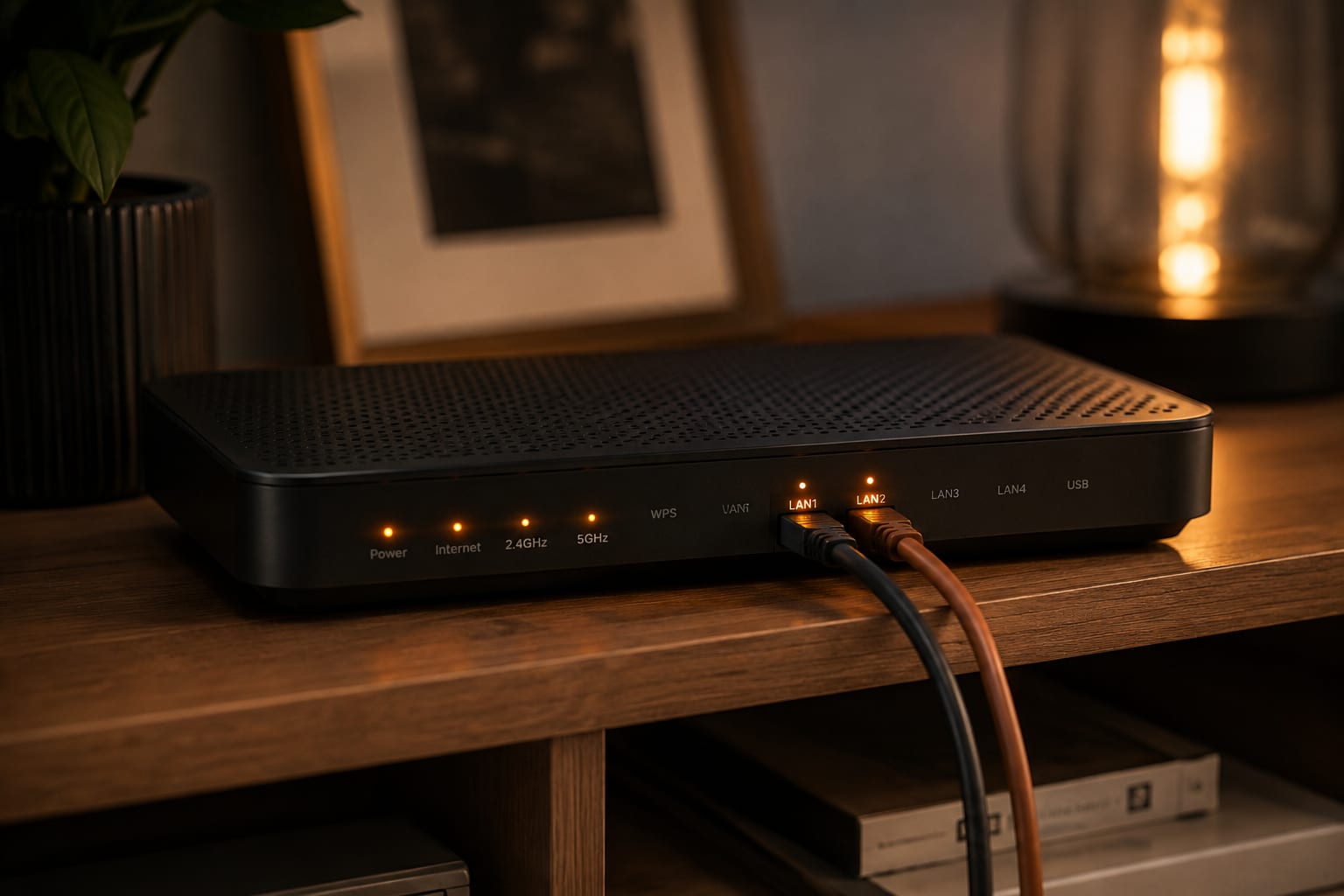
- Go wired. An ethernet adapter costs about two months of subscription and frequently doubles the delivered speed.
- Force 5 GHz. If wiring is impossible, split your Wi-Fi bands into separate names and join the 5 GHz one explicitly rather than trusting band steering.
- Move the router. Out of the cupboard, off the floor, away from the microwave. It matters more than people expect.
- Enable QoS. Most routers can prioritise one device. Give it to whatever plays the stream.
- Watch FHD instead of 4K. Half the bandwidth, and at normal viewing distance the difference is far smaller than the specification suggests.
- Then upgrade the package. Only once the first five are done, because otherwise you are buying speed that never reaches the television.

A note on mobile and 5G broadband
Fixed-wireless and 5G home broadband can absolutely carry 4K IPTV — some of it is faster than the fibre in the same street. The difference is variance. A cell tower is a shared medium, so your throughput moves with how many neighbours are on it, and evening peaks hit harder than they do on a wired line.
If that is your connection, two things help disproportionately: place the receiver where signal is strongest rather than where it is convenient, and connect your television by ethernet to the receiver so you are not stacking a weak Wi-Fi hop on top of a variable cellular one. Then judge it over a full evening rather than a speed test — on a shared medium, the average is far less informative than the worst minute.
Does upload speed matter?
Barely. IPTV is almost entirely a download activity; your device sends only small acknowledgements and keep-alive requests upstream. Anything above 5 Mbps upload is more than enough.
The exception is if someone in the house is on a video call or uploading large files while you watch. Saturating your upload can delay those acknowledgement packets enough to disturb the download stream — a genuinely counter-intuitive failure that QoS settings resolve.
Frequently asked questions
For one 4K stream, comfortably — a 4K IPTV feed typically sits between 15 and 25 Mbps, so 50 Mbps leaves plenty of headroom for the rest of the house. The caveat is that the 50 Mbps has to reach your streaming device. Over 2.4 GHz Wi-Fi at the far end of the house, a 50 Mbps line often delivers under 20 Mbps to the TV, which is where it becomes marginal.
Yes, in HD. A 720p or lower-bitrate 1080p stream runs at 3 to 6 Mbps, so 10 Mbps is workable for a single viewer with nothing else running. You will not hold a 4K sports feed on it, and you should expect trouble if someone else starts a large download.
Speed tests measure peak throughput to a nearby server over a few seconds. Streaming needs consistent throughput to a specific server over hours. A line with 300 Mbps peak but high jitter or intermittent packet loss will stutter, while a rock-steady 40 Mbps line will not. Consistency beats headline speed for streaming.
Usually a little more per hour. Netflix uses adaptive bitrate and modern codecs to hold 4K at around 7 GB per hour, while a fixed-bitrate 4K IPTV feed can run 8 to 11 GB per hour. If you are on a metered connection, that difference matters over a month.
No. Any technology that delivers a stable 35 Mbps or more to your device works — fibre, cable, good VDSL or a solid 5G connection. Fibre helps mainly because it tends to have lower jitter and holds its speed in the evening, not because of the headline number.
Add the streams together and leave roughly 40 percent headroom. Two 4K streams at 20 Mbps each is 40 Mbps of video, so plan for around 60 Mbps of real, delivered throughput. Remember your subscription also needs to permit two simultaneous connections.
The summary worth remembering
Aim for 35 Mbps arriving at your streaming device for comfortable 4K, and treat that as a floor rather than a target. Beyond that, stability matters far more than headline speed — a steady 40 Mbps line will outperform an erratic 300 Mbps one for streaming every single time.
And before you upgrade anything, spend ten minutes measuring what actually reaches your television. In our experience the answer is usually that the line was never the problem; the Wi-Fi hop at the end of it was. The fastest, cheapest fix in this entire article remains a single ethernet cable.
Once your connection is sorted, the rest is straightforward — pick a plan on the pricing page, check your device on the setup guides, and you are watching in about ten minutes.
The KiloTV support desk
Written by the same team that answers your messages at 2 a.m. Everything here comes from real tickets — the fixes that worked, in the order they usually work. Something still not right? Message us on WhatsApp.